
Is Brawl Stars on PC: How to Play on Computer in 2026
You can play Brawl Stars on PC in 2026, but there is still no official desktop client from Supercell. The workaround is an Android emulator, and BlueStacks or LDPlayer are the two that actually run the game without constant crashes or input lag. Which one is right for your machine depends mostly on how much RAM and GPU headroom you have to spare, which is covered in more detail in our full emulator comparison and setup guide. If your goal is specifically getting around a school or work network filter rather than running the game on a full PC setup, that’s a different problem with a different fix, covered in our guide to playing Brawl Stars unblocked.
Quick answer: no official PC version exists as of this update. BlueStacks and LDPlayer are both viable; BlueStacks is the more forgiving default, LDPlayer edges it out for players chasing higher frame rate caps on capable hardware.
Is Brawl Stars Available on PC Officially?
Officially, no. Supercell has not released a native PC version of Brawl Stars. Since its worldwide launch on December 12, 2018, the game has remained exclusive to iOS and Android, and it isn’t listed on the Supercell Store or through Google Play Games for PC. That’s a real contrast with other Supercell titles: Clash of Clans and Clash Royale are both playable through Google Play Games for PC, and Brawl Stars simply isn’t part of that lineup, with nothing announced to change that.
Even the Mainland China release, handled by Tencent starting in June 2020, stayed mobile-only. In the years since global launch, download counts have climbed into the hundreds of millions across both platforms, though Supercell doesn’t publish a running total, so treat any specific figure you see quoted online with some skepticism unless it’s tied to a dated source. Third-party trackers such as AppMagic and data.ai put the lifetime total at roughly 500 million as of early 2026, though estimates from different firms vary by tens of millions depending on methodology.
If you want to play on a computer, a third-party Android emulator is the only option right now, officially or otherwise.
Will Brawl Stars Come to Google Play Games for PC?
Not yet, and Supercell hasn’t given a timeline. Clash of Clans and Clash Royale both run natively through Google Play Games for PC, Google’s official Android-on-Windows layer, but Brawl Stars still isn’t part of that lineup as of this update. That gap matters because Google Play Games for PC would remove the emulator step entirely: no separate app to install, no BIOS virtualization setting to flip, just a Google-signed client running the same Android build you’d get on a phone.
Supercell hasn’t explained the omission publicly, and nothing in the game’s recent patch notes points to a Play Games for PC rollout. Until that changes, an Android emulator remains the only route onto a PC, whether that’s BlueStacks, LDPlayer, or a lighter option covered later in this guide.
Why Play Brawl Stars on PC Instead of Mobile
Playing on PC gives you keyboard and mouse controls, which offer better aiming precision than swiping on a touchscreen. You also get a larger, high-resolution display that makes spotting distant enemies and reading the minimap easier, plus PC hardware generally handles long sessions without the overheating issues phones run into. You’ll also skip the interruptions from calls or notifications that tend to derail a match mid-fight.
Better Aiming Precision
A mouse gives you pixel-perfect control that touch joysticks can’t match, letting you land instant flicks and fine adjustments. You can tune DPI settings to your own playstyle, something mobile sensitivity sliders don’t really allow for. You’ll also cut out common mobile problems like thumbstick drift and reliance on auto-aim. Manual aiming becomes the default, which matters most for long-range brawlers who live on accurate shots.
Larger Screen Benefits
Switching from a phone screen to a full PC display changes situational awareness immediately. Mobile screens show roughly a third of the map at a time, forcing constant panning and missing enemy movement in the process. On PC, you see far more of the battlefield at once, which cuts down on blind spots. Running the emulator at 1280×720 or higher in full-screen mode makes the biggest visible difference here.
Comfortable Extended Sessions
Larger screens also make marathon sessions more comfortable. A full keyboard and mouse setup spreads effort across ergonomic peripherals instead of the thumb strain that builds up during long mobile sessions, your desktop stays cooler than a phone mid-match, and you don’t have to think about battery drain while grinding ranked matches. Emulators like BlueStacks and LDPlayer also support keyboard remapping that adds to the comfort over long sessions.
Is Brawl Stars Easier or Better on PC Than Mobile?
For most players, yes, PC play is easier once the setup is done, though whether it’s “better” depends on what you’re optimizing for. Manual aiming with a mouse is more consistent than touch controls, which shows up directly when you’re climbing trophy ranks or holding your own in Ranked. The wider field of view also helps in objective-based game modes like Gem Grab and Brawl Ball, where tracking teammates and enemies across a bigger map matters more than raw reflexes.
Mobile still wins on convenience. You can queue a match on a bus or between classes, something a PC setup doesn’t offer, and squadding up with friends is just as easy from a phone. If your priority is precision and comfort during longer sessions, especially through a full Brawl Pass season of grinding skins and events, PC is the better fit. If you want to play in short bursts wherever you happen to be, mobile still makes more sense.
What Your PC Needs Before Installing an Emulator
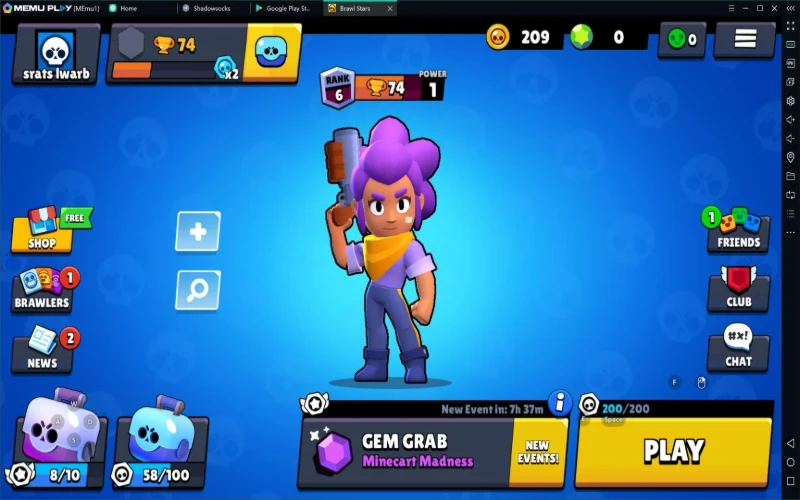
Before installing an emulator, check a few baseline requirements. Windows 7 or later is the floor for both major emulators; macOS 11 or higher covers the Mac side. Enable hardware virtualization in your BIOS/UEFI settings first, since both BlueStacks and LDPlayer depend on it for anything close to smooth performance.
For the processor, any modern AMD or Intel chip clears the minimum bar. LDPlayer’s stated recommendation is an 8th-gen Intel Core i3 or higher, though it’s worth double-checking that against LDPlayer’s current spec page since emulator requirements shift between versions. On RAM, BlueStacks 5’s official minimum is 4 GB, with 8 GB recommended for anything beyond casual play.
You’ll need at least 5 GB of free storage, and an SSD over an HDD will noticeably cut load times. An integrated GPU is fine if your CPU and RAM are otherwise capable; on lower-end systems, drop resolution and FPS settings inside the emulator to compensate. BlueStacks is generally the more forgiving default for a first-time setup.
Brawl Stars PC System Requirements: Minimum vs Recommended
Brawl Stars itself doesn’t publish PC specs, since Supercell only builds it for iOS and Android. What you’re actually meeting is the emulator’s requirement, since that’s the layer running the Android build on your Windows or Mac hardware. Here’s the baseline for BlueStacks and LDPlayer side by side:
| Component | Minimum | Recommended |
|---|---|---|
| Operating System | Windows 7 or macOS 11 | Windows 10/11 |
| Processor | Modern AMD or Intel chip | 8th-gen Intel Core i3 or higher |
| RAM | 4 GB | 8 GB or more |
| Storage | 5 GB free | 5 GB+ free on an SSD |
| Graphics | Integrated GPU | Dedicated GPU with Vulkan support |
These numbers track the minimums BlueStacks and LDPlayer publish for their current releases, not a figure from Supercell, so double-check the emulator’s own spec page if your hardware is right on the edge. A system that only clears the minimum column will still run the game, just with lower resolution and FPS settings than a recommended-spec machine, which is where the graphics fixes later in this guide come in.
How to Play Brawl Stars on PC With Bluestacks

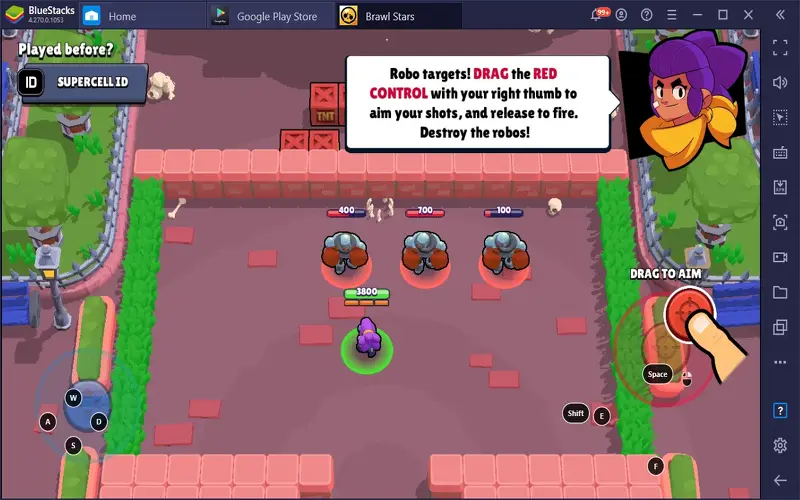
Once BlueStacks is installed and open, the Google Play Store icon sits on the home screen tray. Search “Brawl Stars” there, sign into your Google account when prompted, and hit Install. The download runs in the background, and a completion notification appears in the top-right corner once it’s ready. From the BlueStacks home screen, the Brawl Stars icon appears automatically once installed. Click it, select Play, and the game boots straight into its own login flow.
BlueStacks supports keyboard, mouse, and gamepad input out of the box, which is the actual advantage over mobile play, not just the bigger screen. If you want to run more than one instance at a time, the multi-instance manager (CTRL + Shift + 8) lets you do that, useful if you’re testing different Brawler loadouts across accounts side by side.
How to Set up Brawl Stars on PC With LDPlayer

Setting up LDPlayer starts on the official LDPlayer website, where the download button triggers the installer. Run the exe file, click install, and launch LDPlayer from the desktop shortcut it creates. On LDPlayer’s main screen, type “Brawl Stars” into the search bar and click install next to the Supercell-verified listing. If it redirects to Google Play instead, sign in and install from the game’s store page there; a notification confirms once the download finishes.
Launch the game, let the initial data download run, then log into your account and clear the tutorial. From LDPlayer’s settings, you can raise the frame rate cap as high as 120 FPS in Game Settings, though this is emulator-side headroom rather than a guarantee. Brawl Stars’ own client may still render at a lower internal cap regardless of what the emulator allows, so treat the higher setting as a ceiling, not a promise.
How to Fix Brawl Stars Lag and Performance Problems on PC
Lag and stuttering on an emulator like LDPlayer usually comes down to poor graphics configuration, insufficient memory allocation, or outdated drivers. Lowering graphics settings to match your PC’s actual capabilities cuts frame drops, allocating more RAM to the emulator helps it handle intense 3v3 fights without stuttering, and keeping GPU drivers current prevents avoidable bottlenecks.
Optimize Emulator Graphics Settings
Three settings account for most of the lag players run into.
- Performance Profile: switch from Balanced to High Performance for intensive matches, or Energy Saving for casual sessions.
- Graphics Engine: enable Vulkan if your hardware supports it for better frame rates; fall back to OpenGL on older systems.
- Visual Quality: lower resolution slightly, reduce texture quality, and disable shadow and particle effects.
Test both Vulkan and OpenGL in the emulator’s preview mode to see which actually runs smoother on your hardware, since it varies by GPU.
Allocate More RAM
Close background applications first, since Windows assigns RAM dynamically and fewer competing programs means more available for the emulator. In Task Manager’s Details tab, right-click the Brawl Stars process and set its priority to High to nudge its RAM allocation up during gameplay.
Also confirm you’re running a 64-bit emulator build (check the executable name for “_x64”), since a 64-bit build can access more than 4GB of RAM directly, which cuts frame drops and loading delays. For most players, 16GB of system RAM is enough; 32GB rarely makes a measurable difference for this specific game.
Update Graphics Drivers
Outdated graphics drivers are one of the more overlooked causes of lag. Update based on your GPU:
- NVIDIA: visit NVIDIA’s driver download center, select your GPU and OS, choose Game Ready or Studio Driver, install, and restart.
- AMD: open Radeon Software, check for updates with Recommended and Optional settings enabled, install, and restart.
- Intel: go to Intel’s driver download center, find your Arc or Iris Xe driver, download, and install.
You can also use Device Manager directly (Win + X, expand Display adapters, right-click your card, Update driver, Search automatically).
Brawl Stars Keyboard and Mouse Controls on PC
Once Brawl Stars is running in your emulator, open the settings menu and enable keyboard controls to activate button mappings. Turn on onscreen controls first to see the default letter assignments, export your configured controls, and import them into any other instance you’re running. Once everything’s set, disable the onscreen overlay for a cleaner view.
By default, WASD or arrow keys handle movement, the mouse controls aiming and attacking, Q activates your Hypercharge ability, and E triggers your super. BlueStacks ships with preset mappings to get started, and you can rebind any key through the export/import flow. Mouse aiming gives noticeably better precision than touch joysticks once you’ve spent a session or two adjusting sensitivity to something that feels natural for your own hand movement, not a copied setting from someone else’s setup. The whole process takes under 15 minutes.
Which Emulator Runs Brawl Stars Best on Low-End PCs
For genuinely constrained hardware, the trade-off usually comes down to how much you’re willing to sacrifice for stability. Mumu Nebula is generally the lightest option, reportedly running on as little as 1 to 4GB of RAM without a dedicated GPU, though that’s worth confirming against MuMu’s own current spec page before you rely on it. BlueStacks 5’s Eco Mode and 32-bit instance option cut CPU spikes and memory use, and capping resolution at 1280×720 with a 30 FPS lock keeps 4GB systems usable rather than fighting for every frame. LDPlayer sits in between: reasonably light, with the added benefit of multi-instance support if you ever want to run more than one account.
Whichever you pick, enabling virtualization in BIOS and clearing background apps before launching matters more than which specific emulator you chose.
Frequently Asked Questions
Is My Brawl Stars Mobile Progress Transferable to the PC Version?
Your mobile progress carries over to PC through your Supercell ID. Log in to the same account in the emulator, and your trophies, brawlers, and upgrades come with it automatically.
Does Playing Brawl Stars on PC Violate the Game’s Terms of Service?
Playing through an emulator doesn’t officially violate Supercell’s terms, but it’s not a supported path either, so there’s some risk in that gap. Supercell could in theory restrict an account without warning, even though this isn’t common in practice.
Can I Use a Controller Instead of Keyboard and Mouse on PC?
Yes. Connect a gamepad via USB or Bluetooth, then map controls through your emulator’s settings for console-style play. Full setup steps are in our Brawl Stars controller support guide. Mac users specifically will want macOS 11 (Big Sur) or later; our guide to playing on Mac covers the platform-specific setup steps this article doesn’t.
Conclusion
There’s no official Brawl Stars client for PC in 2026, and nothing suggests that’s changing. BlueStacks and LDPlayer both get you there reliably, with BlueStacks the easier default and LDPlayer worth the extra setup time if you’re chasing a higher frame rate cap on capable hardware. Pick the one that matches your machine, work through the settings above, and the actual setup takes well under half an hour once you know what you’re looking for.
