
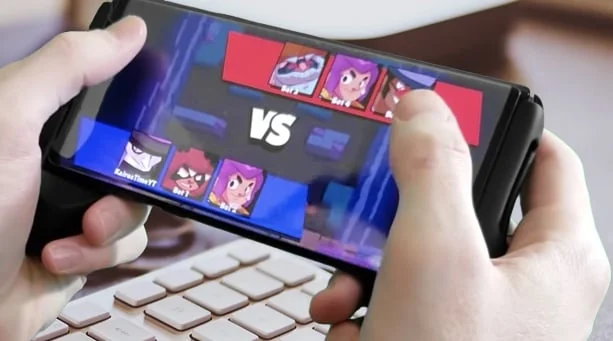
Brawl Stars Controller Support: How to Play With a Controller (2026)
Brawl Stars doesn’t have native controller support in 2026, so you’ll need third-party tools to make it work. You can connect a PS4, Xbox One, or Bluetooth controller to your device, but you’ll also need a button-mapping app like Mantis Gamepad Pro for Android or Shooting Plus V3 for iOS to translate inputs into touch controls. Be aware that using these tools carries some ban risk. Keep going to find out exactly how to set everything up safely.
Key Takeaways
There’s no official controller mode in Brawl Stars, and there won’t be until Supercell says otherwise. Everything below is a workaround built on third-party apps, and each one carries some tradeoff between setup effort, reliability, and account risk.
- Third-party apps like Mantis Gamepad Pro (Android) and Shooting Plus V3 (iOS) map controller buttons to screen touches, since Brawl Stars itself never recognizes the controller directly.
- PS4, PS5, Xbox, and MFI-certified controllers are the most consistently compatible options, with wired USB through a PC emulator eliminating latency entirely.
- Using a mapping app or emulator falls under Supercell’s Safe and Fair Play Policy in a gray zone, not an approved one, so treat every workaround here as carrying some ban potential.
Does Brawl Stars Have Native Controller Support in 2026?

As of 2026, Brawl Stars still lacks native controller support, leaving players to rely entirely on touch controls. Supercell hasn’t added any official controller or gamepad options, and you won’t find controller settings anywhere in the menu. Even the official PC version ships without controller integration, which is surprising given how common that feature is across other titles.
One quick clarification worth making here: when this guide, and Brawl Stars itself, refers to a “joystick,” it usually means the on-screen virtual stick you drag with your thumb, not a physical joystick or arcade stick peripheral. Everything below about controllers applies to standard gamepads like a PS5 or Xbox pad; dedicated flight sticks or arcade joysticks aren’t supported by any of the mapping apps covered in this guide.
If you connect an Xbox controller via Bluetooth on iOS, it can navigate menus but stops responding once a match actually starts. This holds true across recent iOS versions and current-generation iPhones and iPads, since the behavior comes from how Brawl Stars handles input focus rather than from any particular device or firmware.
Supercell hasn’t announced any plans to change this, and the current design clearly prioritizes touch over traditional controllers.
Your only real options involve third-party workarounds, which we’ll cover in the sections below. For now, understand that no official solution exists, and you’ll need to take extra steps to make a controller work. Players on PC can use Android emulators like BlueStacks, which do provide built-in controller support and mapping tools.
Why Your Controller Stops Working Once a Match Starts
Once a match starts, Brawl Stars automatically switches to touch input, and your controller loses its active role in the session. The game doesn’t include in-match controller mapping, so there’s no fallback that keeps your inputs recognized after the lobby loads. This mirrors a pattern seen across other mobile and cross-platform titles, where controller input works fine in menus but drops out specifically once an online match begins, while offline or practice modes continue to function without issue.
Touch Controls Override Controllers
When a match starts in Brawl Stars, the game’s native touch controls take priority and override any controller input you’ve mapped. The in-match UI elements hijack input focus, so your joystick mappings lose response the moment the match loads. Even if your Bluetooth pairing worked perfectly in the lobby, it’ll fail once gameplay begins.
The problem runs deeper than a simple conflict. Touch signals from grip devices persist over your mappings, and active touch elements continuously override controller inputs throughout the match. Third-party overlay tools like K2er and Mantis load your custom configs successfully, but they interfere the moment the match starts. There’s no native fix for this: the game’s touch priority is baked into how the mobile OS handles input. You can connect any gamepad to these tools, including Xbox, PlayStation, or Nintendo Switch controllers, but none of them escape the touch override issue once a match begins.
No In-Match Mapping
The root of the problem is that Brawl Stars has no native controller support on mobile, so there’s nothing in the game itself to recognize your inputs once a match starts. All mapping happens at the emulator level, and once you’re in a match, you can’t touch those settings. Every one of the five common mid-match adjustments below, remapping buttons, switching control schemes, adjusting control positions, activating the MOBA skill pad, or disabling the automatic mouse, has to happen before you queue up, not during the game. Everything must be configured before character selection. If something’s wrong, you’ll exit the match, fix it in the emulator’s control panel, and restart. There’s no pause menu shortcut, just a hard stop between you and your settings. Users who have found success often do so through Steam Input settings, enabling controller recognition before ever launching into a session.
Which Controllers Actually Work With Brawl Stars?

Before diving into workarounds and setup guides, you’ll want to know which controllers actually work with Brawl Stars. The good news is that several popular options are compatible across different platforms.
PS4 and Xbox One controllers work with Brawl Stars across multiple platforms, including iOS. If you’re on iPhone or iPad, MFI-certified controllers offer the smoothest experience and are the recommended choice for iOS gameplay.
Most popular third-party Bluetooth controllers also function with Brawl Stars once you’ve paired them through your device settings. If you’re playing through a PC emulator like BlueStacks, nearly any standard gaming controller works without additional software.
For competitive play, wired USB controllers connected through a PC emulator eliminate latency concerns entirely. Bluetooth connections introduce some wireless interference, so wired setups deliver more responsive gameplay when performance matters most. Console controllers can also substitute for mobile device controls, giving players a familiar input option when gaming on the go.
Best Controllers for Brawl Stars in 2026: PS5, PS4, Xbox, and Switch Pro Compared
Once you’ve confirmed a controller can connect, the real question is which one feels best in your hand during an actual match. Here’s how the four most common options compare.
| Controller | Connection | Best For | Tradeoff |
|---|---|---|---|
| PS5 DualSense | Bluetooth or USB-C | Android via Mantis Gamepad Pro, iOS via AssistiveTouch | Haptic feedback and adaptive triggers go unused since mapping apps only read basic stick and button input |
| PS4 DualShock 4 | Bluetooth or USB | Widest cross-platform compatibility, including older Android devices | No vibration feedback once routed through a mapping app |
| Xbox Wireless Controller | Bluetooth or USB-C | PC emulator play through BlueStacks or LDPlayer | Menu navigation works on iOS, but in-match input still hits the same touch override covered above |
| Nintendo Switch Pro Controller | Bluetooth or USB-C | PC emulator setups where native recognition matters most | Least consistent mobile pairing of the four; it wasn’t designed with Android or iOS game compatibility in mind |
For ergonomic comfort during longer sessions, the DualSense and Xbox Wireless Controller both have a slight edge thanks to their grip shape and trigger travel. If customization and remapping flexibility matter more to you than raw comfort, the controller itself matters less than which mapping app you pair it with; Mantis Gamepad Pro’s interface gives you more granular control over sensitivity and button assignment than most alternatives. Build quality, not brand, tends to be what actually holds up over dozens of matches.
How to Connect Your Controller to Your Device via Bluetooth or USB
Connecting your controller to a smartphone or tablet takes just a few steps, whether you’re going wireless or wired. For Bluetooth, charge your controller fully, enable Bluetooth in your device settings, hold the pairing button until the controller enters discovery mode, then select it from the available devices list. USB and wireless setups on Android need a bit more: enable Developer Options and wireless debugging first, then install Mantis Gamepad Pro from Google Play and add Brawl Stars inside the app to finish setup.
| Connection Type | Key Requirement |
|---|---|
| Bluetooth | Enable Bluetooth, hold pairing button |
| USB (Android) | Enable Developer Options and wireless debugging |
| Wireless (Android) | Install Mantis Gamepad Pro from Google Play |
Once connected, launch Brawl Stars and the game detects your controller automatically. Test stability in a training match before jumping into ranked or trophy games, since a mid-match drop is harder to recover from than a lobby hiccup.
How to Map Controller Buttons to Brawl Stars Controls
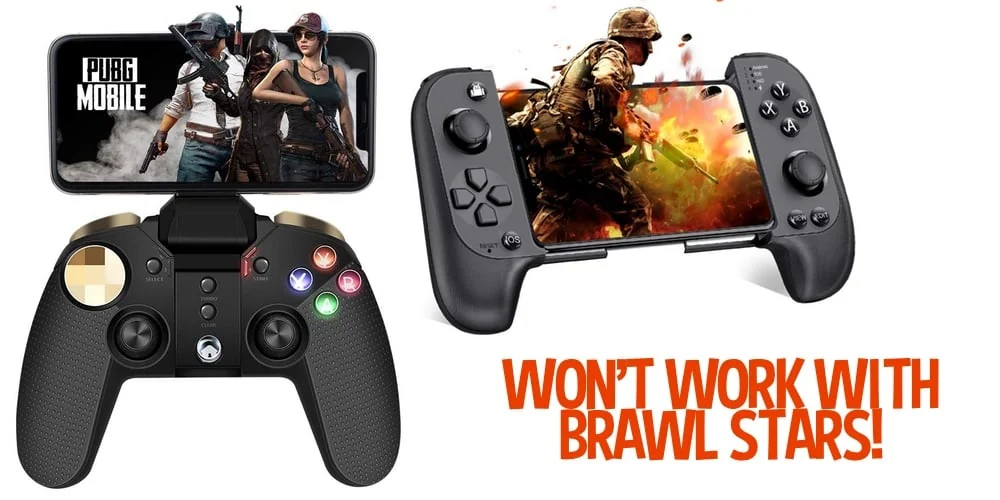
Since Brawl Stars lacks native controller support, you’ll need a third-party mapping app like Mantis Gamepad to assign your controller’s buttons to in-game touch commands. Once you’ve chosen your app and connected your controller, map your left stick to movement by defining a circular touch area and your right stick to attack direction using drag-type sensitivity settings. Start in the 70–80% range and adjust from there based on feel; this isn’t a fixed number, just a reasonable starting point before you fine-tune for your own aim. From there, you can assign your Super and other abilities to specific buttons, placing their icons at screen positions that match your preferences before saving the configuration.
Choosing Your Mapping App
Because Brawl Stars doesn’t natively support controllers or gamepads on Android or iOS, you’ll need a mapping app to bridge your gamepad inputs to the game’s onscreen controls. Each app varies in platform compatibility, features, and setup complexity:
- Mantis Gamepad Pro – Android’s most reliable Bluetooth mapper with MOBA Smart Cast for directional abilities
- K2er Gamepad Mapper – Android-focused with macro support, mouse simulation, and shareable config codes
- Shooting Plus V3 – iOS third-party app mapping controller buttons directly to Brawl Stars’ onscreen actions
- Panda Gamepad Pro – iOS alternative emphasizing precise button-to-action assignments, excluding joystick movement
Pick the app that matches your device’s operating system and your preferred control complexity before moving to configuration. App store listings for these tools change fairly often, so it’s worth checking the current listing and recent reviews before you commit to one.
Assigning Joystick Movement Controls
Mapping joystick movement to your controller takes three core steps: pairing your gamepad, adjusting the on-screen joystick position, and assigning the physical stick input.
First, connect your controller through Bluetooth pairing mode. Once paired, open the game’s Settings by tapping the dropdown in the top right, then select Edit Controls. This takes you to the control editing screen inside the training grounds, where you can reposition and resize the on-screen movement joystick to match your comfort level.
Next, navigate to your controller options within the game settings and reassign movement to your preferred joystick input. Experiment with different layouts until the controls feel intuitive. Once satisfied, save your custom profile to keep your mapping consistent across matches. Test everything in training grounds before going live.
Mapping Attack And Super
With your movement controls set, the next step is mapping your attack and Super buttons. In Brawl Stars, the red Attack button and yellow Super button sit on the right side of your screen by default. Using Mantis Gamepad or your emulator’s built-in mapper, assign these to your controller’s triggers:
- RT/R2 – Attack button (tap for Quickshot, hold and drag for Aimed Shot)
- LT/L2 – Super button (activates when your Super’s ready, supports both shot types)
- A/B/X/Y – Gadget button, which only appears if your Brawler has a Gadget
- Slightly increase Super and Gadget button sizes in Settings > Edit Controls for better precision
Test everything in Training Cave before jumping into live matches.
Setting Up Mantis Gamepad Pro for Brawl Stars (Step-by-Step)
Mantis Gamepad Pro comes up more than almost any other tool in this guide because it’s the closest thing to a universal bridge between a physical controller and Brawl Stars’ touch interface, on both Android and iOS. Here’s the setup from download to first match:
- Install Mantis Gamepad Pro from the Google Play Store (Android) or App Store (iOS).
- Open the app, select “Add Game,” search for Brawl Stars, and tap the “+” icon to add it to your library.
- Grant the “Floating Widgets” or overlay permission the app requests; without it, the mapping layer won’t render over Brawl Stars.
- Pair your controller through your device’s Bluetooth settings first, before opening Mantis. Most PS4, PS5, and Xbox pads pair by holding their pairing combination until the light bar or ring flashes, then stabilizes once connected.
- Launch Brawl Stars through Mantis itself, not directly from your home screen, so the mapping overlay loads correctly.
- Use the app’s configuration screen to assign your left stick to movement, right stick or triggers to attack and Super, and remaining buttons to Gadget and Hypercharge.
- Save the profile under a name you’ll recognize, since Mantis lets you store multiple configurations if you play more than one mobile game.
A few things worth knowing before you commit to this setup: full Mantis configuration on Android is smoother with a one-time PC connection, the app’s interface leans utilitarian rather than polished, and neither platform passes vibration or haptic feedback through from the controller, since the mapping layer only reads inputs and simulates touches, it doesn’t relay signals back. If your stick drifts or feels less precise after a few weeks of use, that’s normal wear rather than anything specific to Brawl Stars or Mantis.
How to Play Brawl Stars With a Controller on Android
Although Brawl Stars doesn’t natively support controllers on Android, you can still get one working through Bluetooth pairing and a third-party mapping app. Start by enabling Bluetooth on your Android device, then activate your controller’s pairing mode until its light bar flashes. Select your controller from the available devices list and confirm the connection when the light stabilizes.
Once paired, download Mantis Gamepad from the Play Store to handle button mapping. Note that full Mantis setup requires a PC connection. Alternatively, apps like Octopus work for mobile controller overlays without a PC.
After setup, launch Brawl Stars and open settings via the top-right menu. The game auto-detects your controller under the control options section, where you can customize your button layout. Compatible controllers include PS4, PS5 DualSense, Xbox Wireless, and the Razer Kishi, which connects directly to Google Pixel phones without additional software.
How to Play Brawl Stars With a Controller on iOS
Since Brawl Stars lacks native controller support on iOS as of 2026, you’ll need third-party workarounds to get full functionality during gameplay. Your best option is Mantis Gamepad, which lets you map controller buttons to on-screen touches via Bluetooth, though it does require a PC for initial mobile configuration. You can also use iOS Accessibility Touch features to create custom touch mappings that link your controller inputs to in-game actions.
Using Mantis Gamepad App
Mantis Gamepad is one of the easiest ways to get controller support working in Brawl Stars on iOS, and you’ll need to download it from the App Store to get started. Once installed, follow these steps:
- Add Brawl Stars by selecting “Add Game” and tapping the “+” icon next to it
- Grant “Floating Widgets” permission when the overlay pop-up appears
- Pair your PS4 or PS5 controller via Bluetooth by holding the PS and SHARE buttons until the light bar flashes
- Launch Brawl Stars through Mantis and configure your keymapping using the joystick and button options
Test your layout in the training ground before jumping into matches so you can adjust placements without any pressure.
Accessibility Touch Workarounds
If you’re looking for a native alternative to third-party apps, iOS’s built-in AssistiveTouch feature lets you map controller inputs to screen touches without downloading anything extra. Enable it under Settings > Accessibility > Touch > AssistiveTouch, then activate Use Game Controller. A PS5 DualSense pairs by holding PlayStation + Create, an Xbox controller by holding Xbox + the pairing button, and any generic Bluetooth pad through standard pairing, each maps to a different AssistiveTouch function (tap simulation, joystick simulation, or pointer control, respectively). Sony and Microsoft occasionally update pairing behavior through firmware updates, so if a combination stops working, checking your controller for a pending firmware update is a good first step.
Once paired, enable Pointer Devices under AssistiveTouch settings and configure Dwell Control to simulate taps for movement and attacks. Test each mapped input in Brawl Stars since unregistered inputs require fine-tuning. Note that workarounds may introduce input delays during actual gameplay.
How to Play Brawl Stars With a Controller on PC
Playing Brawl Stars with a controller on PC isn’t natively supported, so you’ll need an Android emulator like BlueStacks 5, LDPlayer, or NoxPlayer to get it working. These emulators include built-in mapping tools that bridge your controller’s inputs to in-game actions.
Here’s how to set everything up:
- Download and install your preferred emulator, search for Brawl Stars in the search bar, and install it
- Connect your controller via USB or Bluetooth before launching the game. PS4, PS5, Xbox, and Switch Pro controllers are all recognized
- Open the emulator’s mapping tools and assign controller buttons to corresponding game actions
- Calibrate your sticks and buttons within the emulator settings to fine-tune your response curves
Since Brawl Stars has no built-in UI prompts or rebinding options, the emulator handles everything. Getting this right before your first session saves you from mid-match frustration. If you haven’t settled on an emulator yet, our breakdown of the best Brawl Stars emulators for PC compares BlueStacks, LDPlayer, and NoxPlayer side by side, and Mac owners should check our guide to playing Brawl Stars on Mac first, since not every Android emulator runs the same way on macOS.
Troubleshooting: What to Do When Your Controller Won’t Connect or Stops Working
Most controller problems in Brawl Stars fall into a handful of repeatable categories. Work through these before assuming your hardware is at fault.
Controller Won’t Pair
Forget the device in your phone’s Bluetooth settings and re-pair from scratch rather than reconnecting to a stale profile. Low battery is the most common silent cause of failed pairing, so charge fully before troubleshooting further. If you’re on Android, confirm Developer Options and wireless debugging are still enabled, since a system update can quietly reset them.
Mantis or Your Mapping App Doesn’t Detect Brawl Stars
Remove the game from the app’s library and re-add it rather than trying to repair an existing entry. Recheck the Floating Widgets or overlay permission, since app updates sometimes revoke it silently without any on-screen warning.
Controller Disconnects Mid-Session
This is almost always Bluetooth interference from other paired devices nearby, not a Brawl Stars issue. Turn off other Bluetooth accessories during a match, or switch to a wired USB connection if you’re on a PC emulator, to rule out interference entirely.
Input Feels Delayed or Imprecise
Recalibrate your sensitivity settings in the mapping app rather than assuming the controller itself is faulty; drag-type sensitivity set too high or too low creates a real, noticeable gap between stick movement and on-screen response. A wired connection removes wireless-specific input delay entirely if precision matters most to you.
Can Third-Party Controller Apps Get You Banned?
Getting your controller working through an emulator is one thing. Knowing whether it puts your account at risk is another. Supercell’s Safe and Fair Play Policy prohibits any unapproved apps that manipulate or interfere with gameplay, and that includes software triggering mod detection systems. If your controller setup runs through an unauthorized program, it falls under that same category.
Emulator usage exists in a gray area. Some players report using them without bans, but enforcement is inconsistent, so you can’t rely on others’ experiences to protect your account. Detection methods have also evolved, so tools that previously went unnoticed are now getting flagged.
The clearest risk comes from controller mods that bypass official channels. These can trigger anti-cheat systems even when you believe you’re flying under the radar. Until Supercell officially supports desktop controller input, any workaround carries real ban potential.
What Supercell Has Said About Future Controller Support
Despite community speculation and growing demand, Supercell hasn’t made any official statements about adding native controller support to Brawl Stars. Their silence leaves you piecing together clues from unofficial sources rather than confirmed roadmaps.
As of a review of Supercell’s Brawl Stars blog through the June 2026 release notes, controller integration doesn’t appear anywhere: release notes from February, April, and June 2026 cover balance changes, bug fixes, and event announcements only, with no mention of input methods or connected hardware.
Without direct statements, you’re left relying on YouTube speculation and community predictions. Some creators suggest checking future updates, while others reference Xbox Cloud Gaming integration possibilities. None of these claims trace back to Supercell. Until an official announcement surfaces, treat any “confirmed controller support” rumors as unverified community guesswork rather than actual roadmap details.
Conclusion
You’ve now got everything you need to start playing Brawl Stars with a controller. Whether you’re on iOS, Android, or PC, you can set up button mapping, pick the right gamepad, and troubleshoot the most common connection problems along the way. Just remember to stay within Supercell’s guidelines to avoid any risk to your account. Controller support may still be limited, but with the right setup, you’ll be maneuvering through the arena like a pro in no time.
Frequently Asked Questions
Does Controller Use Affect Your Brawl Stars Matchmaking Ranking or Trophies?
No. Matchmaking runs on Rank Score and trophy counts only, with no signal for input device. That said, since touch input takes over the instant a match loads (see the section above), any “advantage” from a controller mostly disappears in-match anyway, which is part of why Supercell hasn’t treated it as a competitive-integrity issue the way they treat scripted macros.
Does Brawl Stars Have Official Gamepad Support on Android and iOS?
No. As covered above, Supercell hasn’t added native controller or gamepad support on either platform, so every setup in this guide runs through a third-party mapping app instead of a built-in game setting.
What’s the Difference Between a Physical Controller Joystick and Brawl Stars’ In-Game Joystick?
The in-game joystick is a touch element you control with your thumb; it’s what Brawl Stars actually recognizes. A physical controller’s joystick only works because a mapping app translates its movement into that same touch input behind the scenes.
Can You Use a Controller on a Smart TV, and Does Input Lag Make Competitive Play Unviable?
You can use a controller on a smart TV, but you’ll need the same third-party stack as mobile, an app like Mantis Gamepad Pro plus a mirroring tool like ApowerMirror, since there’s still no native support. On lag specifically: a wired connection or a dedicated 2.4GHz receiver keeps delay low enough that it isn’t the thing holding your gameplay back. Touch players’ faster raw reaction speed in fast-paced modes matters more than controller lag does.
Can I Play Brawl Stars With a Controller Through Xbox Cloud Gaming?
Not currently. Brawl Stars isn’t part of the Xbox Cloud Gaming library, so any claims about native controller support through cloud streaming aren’t accurate as of this guide’s last update. Treat them as unverified community speculation until Supercell says otherwise.
Are There Brawl Stars Game Modes Better Suited for Controller Play?
Some game modes suit controller play better than others. You’ll find Gem Grab and Brawl Ball more manageable since they’re slower-paced. Avoid Showdown, where touchscreen players’ faster reactions give them a competitive edge.
Can Multiple Controllers Connect Simultaneously for Local Brawl Stars Sessions?
No. Brawl Stars doesn’t support local multiplayer, each emulator instance only accepts one controller, and party modes require online connectivity rather than a local split-screen setup.
